خانه

وبلاگ در باره Guide Diagnosing Laptop LCD Failures With a Multimeter

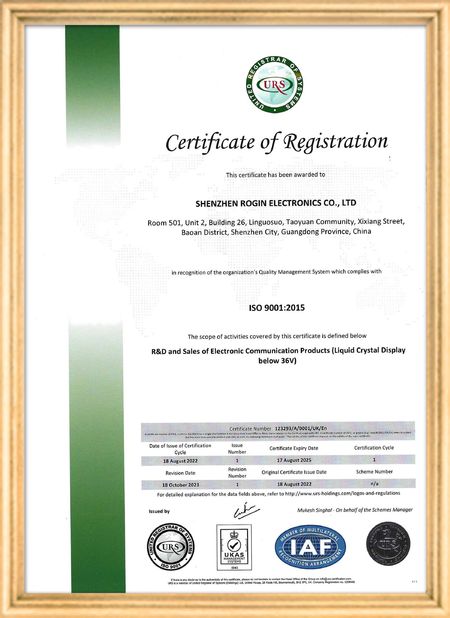
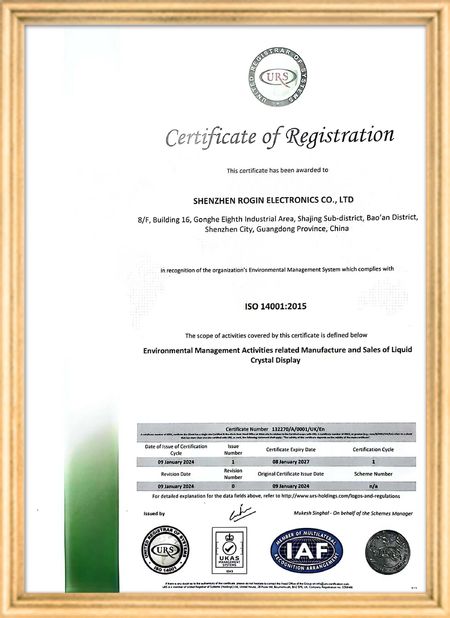
گواهی
چین Shenzhen Rogin Electronics Co., Ltd. گواهینامه ها
نظرات مشتریان
این نمایشگرها در ترامواها کاملاً کار می کنند. روشنایی بالا، ضد تابش نور و حتی در برابر لرزش طولانی مدت پایدار هستند. مسافران از دید واضح لذت می برند.

—— کاسپر سورنسن

رنگ‌های دقیق، پاسخ سریع و راه‌اندازی عادی در دمای پایین. کاملاً مناسب محیط خشن سیستم‌های قطار در حال حرکت.

—— نیکول بکر

نصب آسان، طیف گسترده ای از دما، و دید برجسته در محیط های روشن. این نمایشگرها تمام نیازهای تجهیزات صنعتی ما را برآورده می کنند.

—— جووانی

این ال سی دی های با روشنایی بالا برای کنترل پنل های صنعتی ما مناسب هستند. آنها حتی در زیر نور مستقیم خورشید کارگاه شفاف می مانند و بدون هیچ مشکلی 24/7 کار می کنند. کیفیت عالی صنعتی

—— لوکاس مولر

چت IM آنلاین در حال حاضر
شرکت وبلاگ
Guide Diagnosing Laptop LCD Failures With a Multimeter
آخرین اخبار شرکت Guide Diagnosing Laptop LCD Failures With a Multimeter

When your laptop screen suddenly goes dark, don't panic. A simple multimeter can help you quickly identify power supply issues. This guide simplifies the diagnostic process, enabling you to check your LCD screen's power supply and determine whether the problem lies with the screen itself or its supporting components.

Preparing Your Multimeter

Begin by setting your multimeter to measure DC voltage. Before testing, identify your screen's rated voltage—typically marked near the power connector or available in the device specifications. Modern laptop screens commonly operate between 3.3V to 19V, depending on the model.

Testing Procedure

With the laptop powered off, carefully connect the multimeter probes to the screen's power connector terminals:

  • Place the red probe on the positive (+) terminal
  • Place the black probe on the negative (-) terminal or ground

Power on the device and observe the multimeter reading. Compare this measured voltage with your screen's rated voltage.

Interpreting Results

If the reading shows significantly lower voltage than specified or no voltage at all, potential issues include:

  • Faulty power adapter
  • Damaged motherboard power circuits
  • Loose or damaged cable connections

Systematically check each component: try a different adapter, inspect motherboard connections, and reseat all cables. If voltage readings return to normal after any intervention, you've likely found your culprit.

When voltage measurements match specifications but the screen remains nonfunctional, the issue may involve the LCD panel itself, the backlight, or other screen components requiring further diagnosis.

Safety Considerations

Always disconnect power before handling internal components. When working with exposed connectors, avoid touching multiple contacts simultaneously to prevent short circuits. These basic diagnostic techniques provide valuable information for determining whether to repair or replace components.

میخانه زمان : 2026-05-18 00:00:00 >> blog list
اطلاعات تماس
Shenzhen Rogin Electronics Co., Ltd.

تماس با شخص: Mr. Kelvin Zhu

تلفن: +86 15919061504

ارسال درخواست خود را به طور مستقیم به ما (0 / 3000)